
3rigx lives on your phone and works on your PC.

Talk or type on your Android phone. 3rigx points, opens apps, clicks and types on your Windows PC. Big jobs go to a team of AI models.

Hi! I'm 3rigx. Grab me for Windows here.

Get it from Microsoft Store

Free · Windows 10 and 11 · installs and updates through the Store

Or download the installer (version 1.0.2). Windows may say it “protected your PC”: choose More info, then Run anyway.

Android app: coming soon to Google PlayAndroid 8 or newer

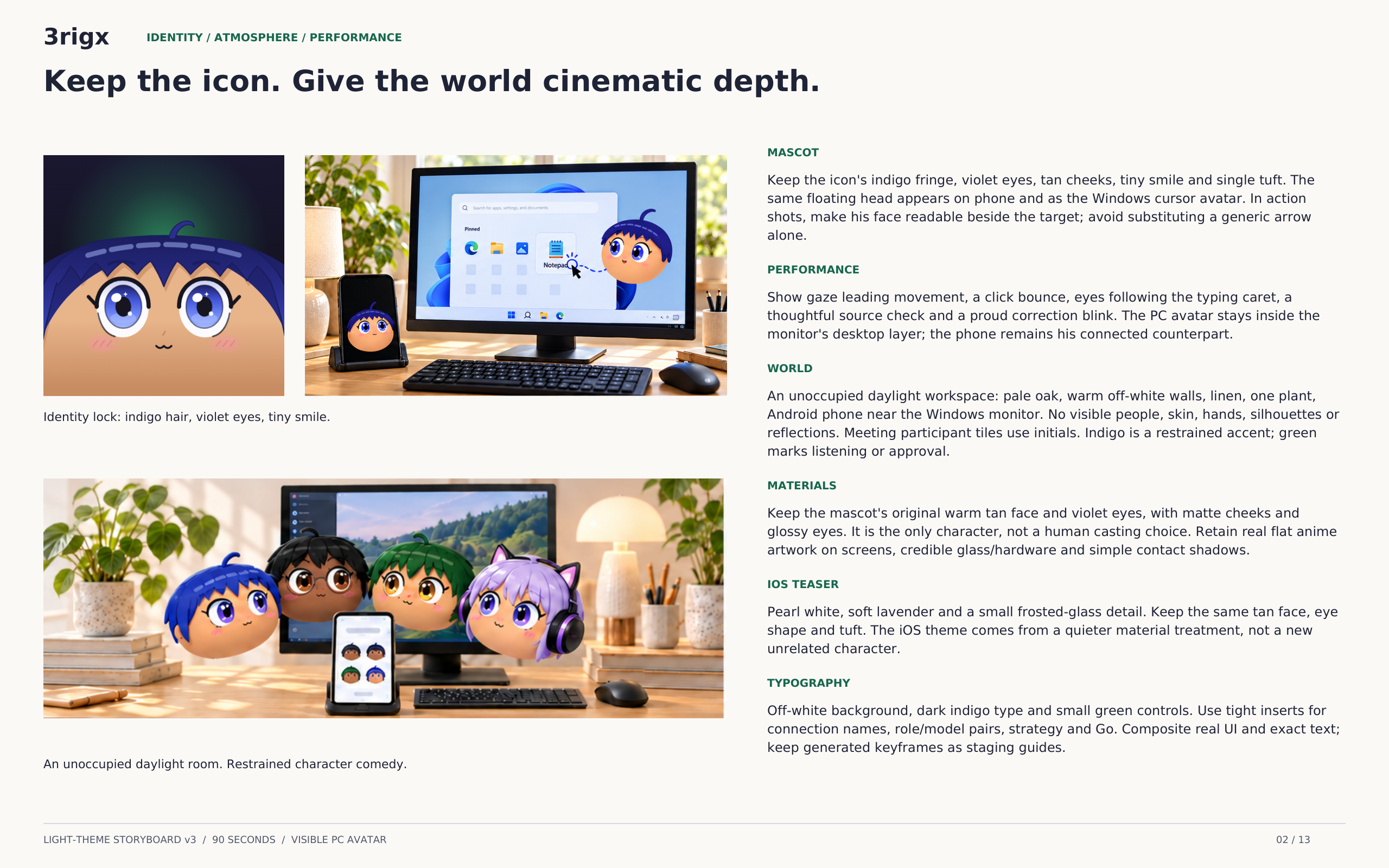
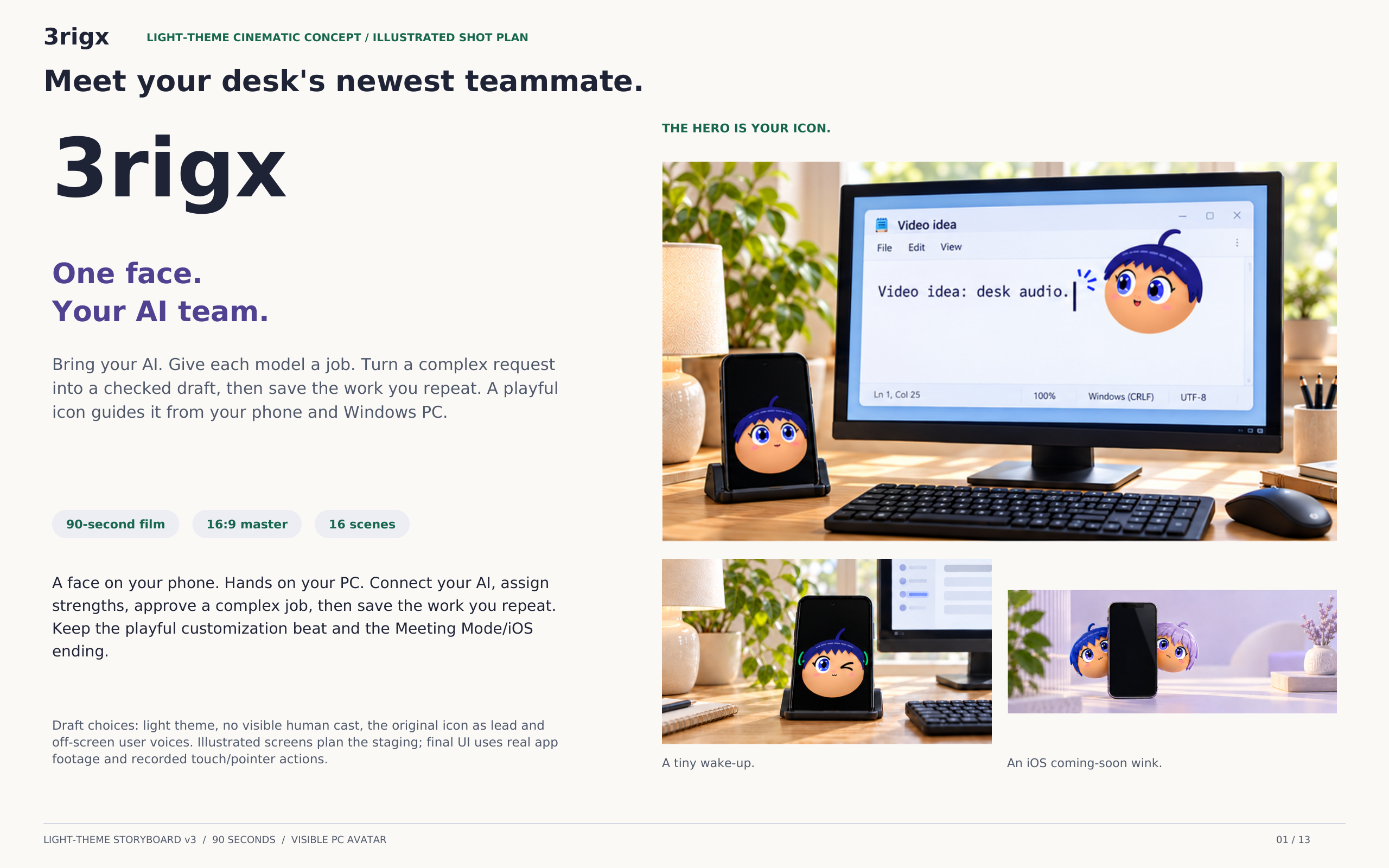
Illustration of 3rigx on a phone beside a Windows monitor, with his matching PC avatar typing a video idea in a sunlit workspace.

Say it, hold to ask, or type it.

I'm listening whenever I glow green.

  1. Hands-free

    Double-tap his face to wake him. The border glows green while he listens, and he answers each time you finish speaking.

  2. Hold to ask

    Switch hands-free off and he stays quiet, keeping what you say as context, until you press and hold the screen.

  3. Silent

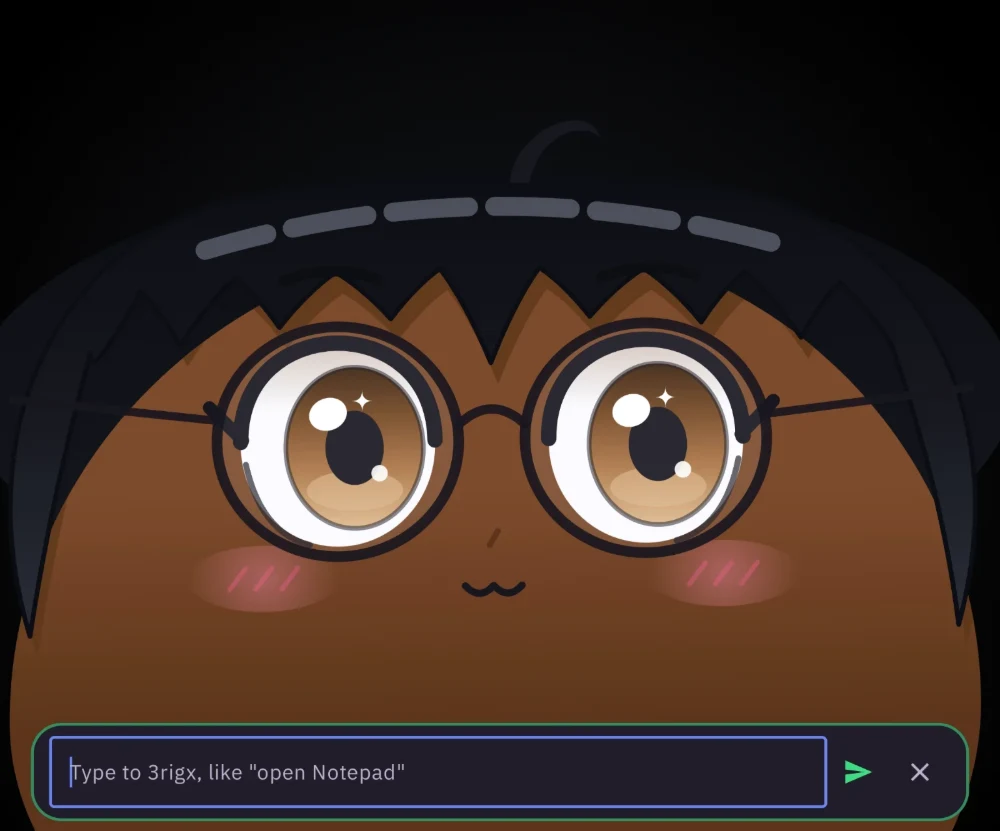
    Somewhere you can't talk? Tap the pencil and type “open Notepad”. He acts exactly as if you'd said it.

Silent mode in the 3rigx app on a tablet: his face with glasses, and the typing box underneath reading “Type to 3rigx, like open Notepad”.

The real app

Silent mode on a tablet: the box sits under his face, and he answers above it.

On the PC, Ctrl+Alt+Space wakes him too.

Mini keeps him with you over your other apps.

Switch to Mini and he shrinks to a floating head on top of whatever you're watching or reading, still listening and still connected to your PC.

Move him
Drag him anywhere, pick his size, and let him snap to the edge of the screen.
Talk as usual
Double-tap to wake him or let him sleep, hold to ask. MIC mutes him in one tap.
Read replies
His answers pop up in a bubble beside him, or turn the bubbles off.
Battery
He rests while nothing's happening, and one tap closes him.

Watching something? I'll wait in the corner.

3rigx's Mini: his head floating in the corner of an Android tablet, over another app.
Mini on an Android tablet. We've blurred the app behind him.

He uses your PC with his own cursor, then hands it back.

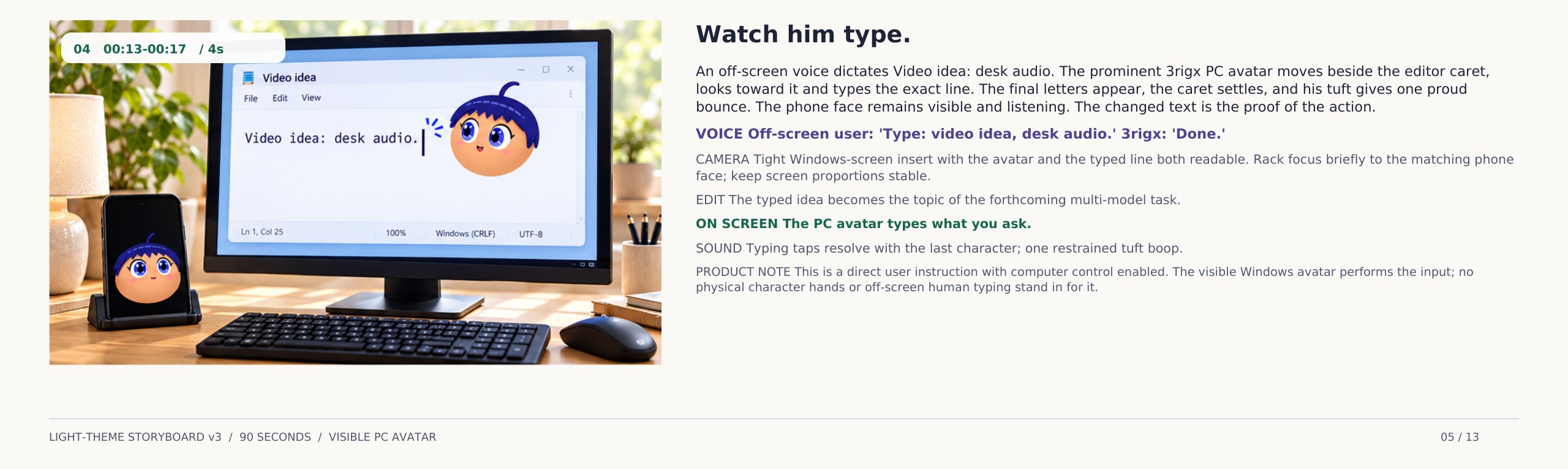
Illustration of 3rigx beside the words Video idea: desk audio in Notepad, with his phone face listening beside the monitor.
Ask on your phone. Watch the work on your PC. Illustration

A demo Windows desktop. 3rigx's cursor opens Notepad and types a list, points at a Schedule button to explain it, or saves a note to his memory, depending on the command you pick.

Points at things.
Ask “what's this?” and he flies to whatever is under your mouse.
Opens apps and sites.
“Open Spotify”, “open my blog”.
Clicks and types for you,
only when Computer control is on. Choose Explain, Draft or Act for each app and site.
Looks things up
on the web and answers in his bubble.
Remembers
what you tell him to, in every session.
Follows you
to whichever monitor you're using.

Big jobs get a team, and each part gets the right model.

Give him something with several steps. A lead model plans it and hands each step to the teammate suited to it. Every teammate can be a different AI, and each can have a backup.

Lead
plans the job and checks the work
Hands
uses your PC and browser with his tools
Writer
writes and rewrites
Analyst
reasons through choices and numbers
Research
searches the web

OpenAI, Google Gemini, Anthropic Claude, Groq, OpenRouter, Mistral, Cerebras, or a model on your own PC with Ollama.

Big job? I split it up and give each part to the model that's best at it.

Finish my latest blog post

Stop
  1. 1. Plan: read the post, then offer three endings

    Lead · Claude

  2. 2. Open inkandoak.blog in his browser and copy the draft

    Hands · Gemini

  3. 3. Find what the post promises but hasn't answered yet

    Analyst · Llama on Groq

  4. 4. Write three endings in your voice

    Writer · GPT

  5. 5. Put the ending you pick into the editor as a draft

    Hands · Gemini

Writing version 2 of 3…
Before the team touches your PC it shows you the plan and waits for Go, on the PC or on your phone.

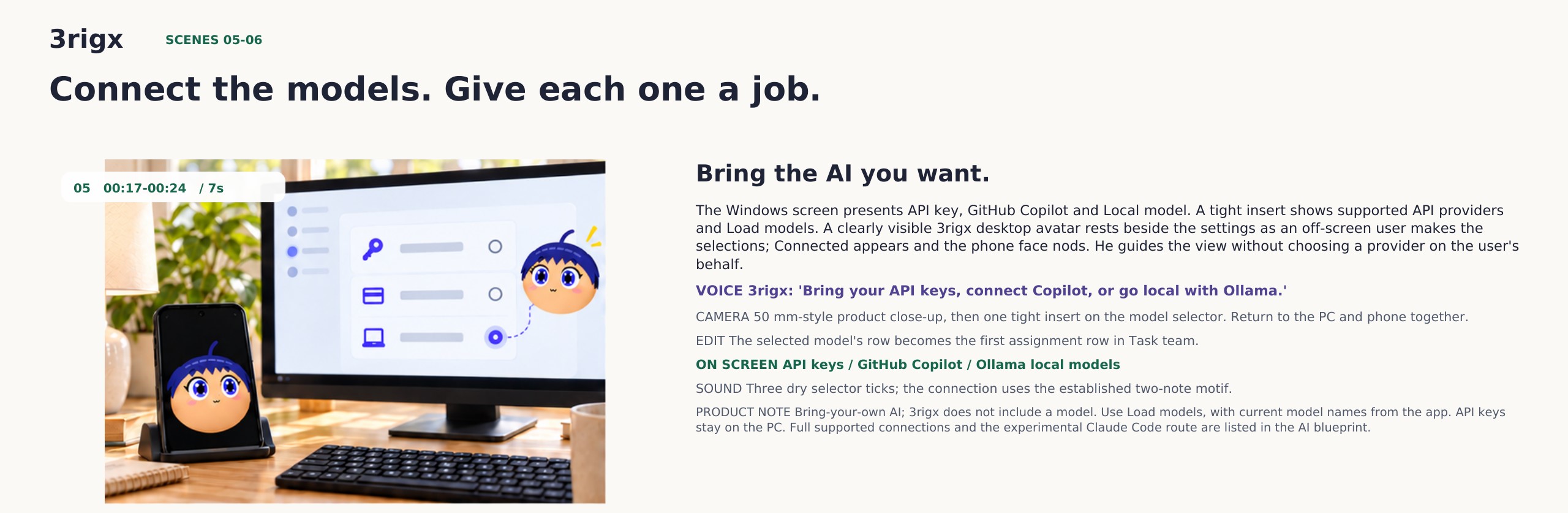
Illustration of AI connection choices on a Windows monitor, with 3rigx visible on the PC and the phone beside it.
Bring your AI connections. Illustration
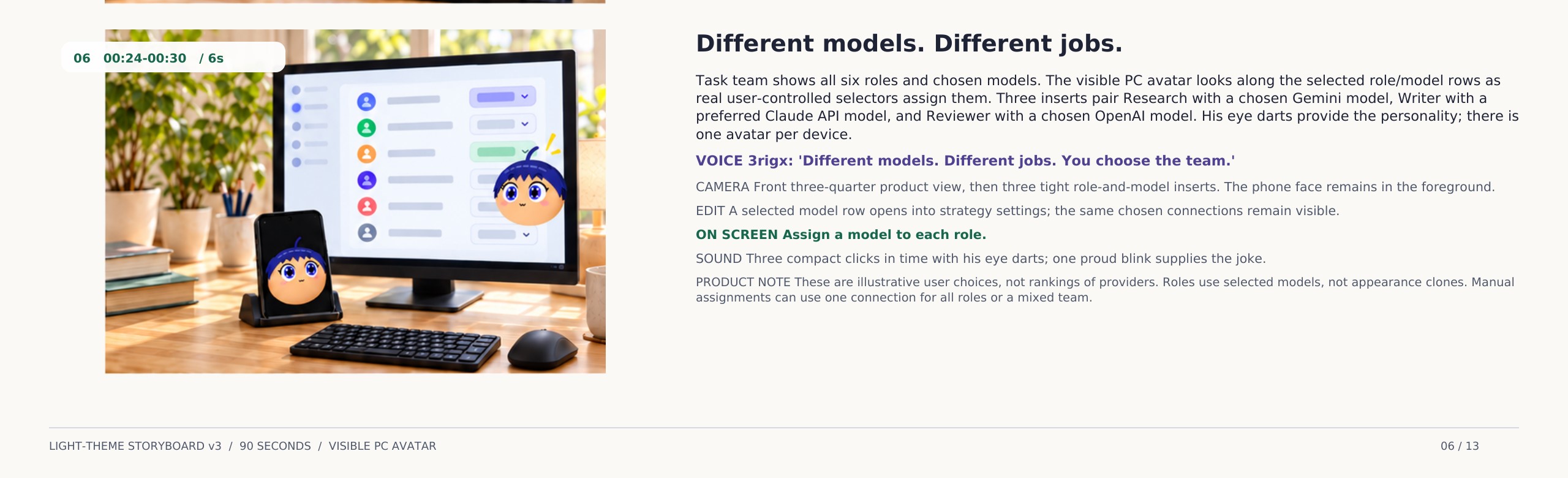
Illustration of a task team with a separate model selector for each role, watched by 3rigx on the monitor and phone.
Choose a model for each role. Illustration
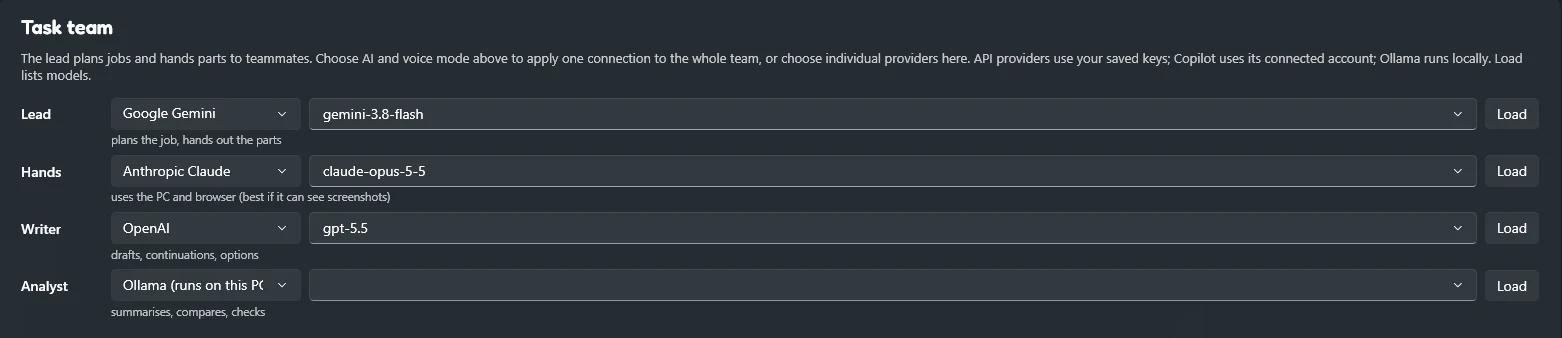
The Task team settings in the 3rigx dashboard on Windows: Lead on Google Gemini, Hands on Anthropic Claude, Writer on OpenAI, and Analyst on Ollama running on the PC, each with its own model.
The real app You choose each role's provider and model in the PC dashboard. Here Gemini leads, Claude works the PC, OpenAI writes, and a model on the PC itself checks the work.

It stops at a draft: the team never publishes, sends or deletes anything. Set a daily spending cap, and see how close each free tier is to its limit.

He remembers what you tell him, and learns the jobs you repeat.

Memory
Say “remember my blog is inkandoak.blog” and he keeps it, in every session and for the task team. It's all under About you on the PC.
Profiles
Work, Study, Gaming and Quiet each keep their own project memory, reply style, voice and way of talking. Add your own, and let him switch when a named app comes to the front.
Routines
Save a job you repeat by name, or teach him from the last task. Run it from the PC or the phone, or just ask for it by name.
Saved progress
Jobs and their finished steps survive a restart. Restored work waits until you press Resume and Go again.

Say “run my Sunday post check” and I'll take it from there.

Sunday post check

Run

Open {project}, read my newest draft and list what it still needs before Monday.

Profile
Work
{project}
inkandoak.blog

Like any task, it shows you the plan and waits for Go.

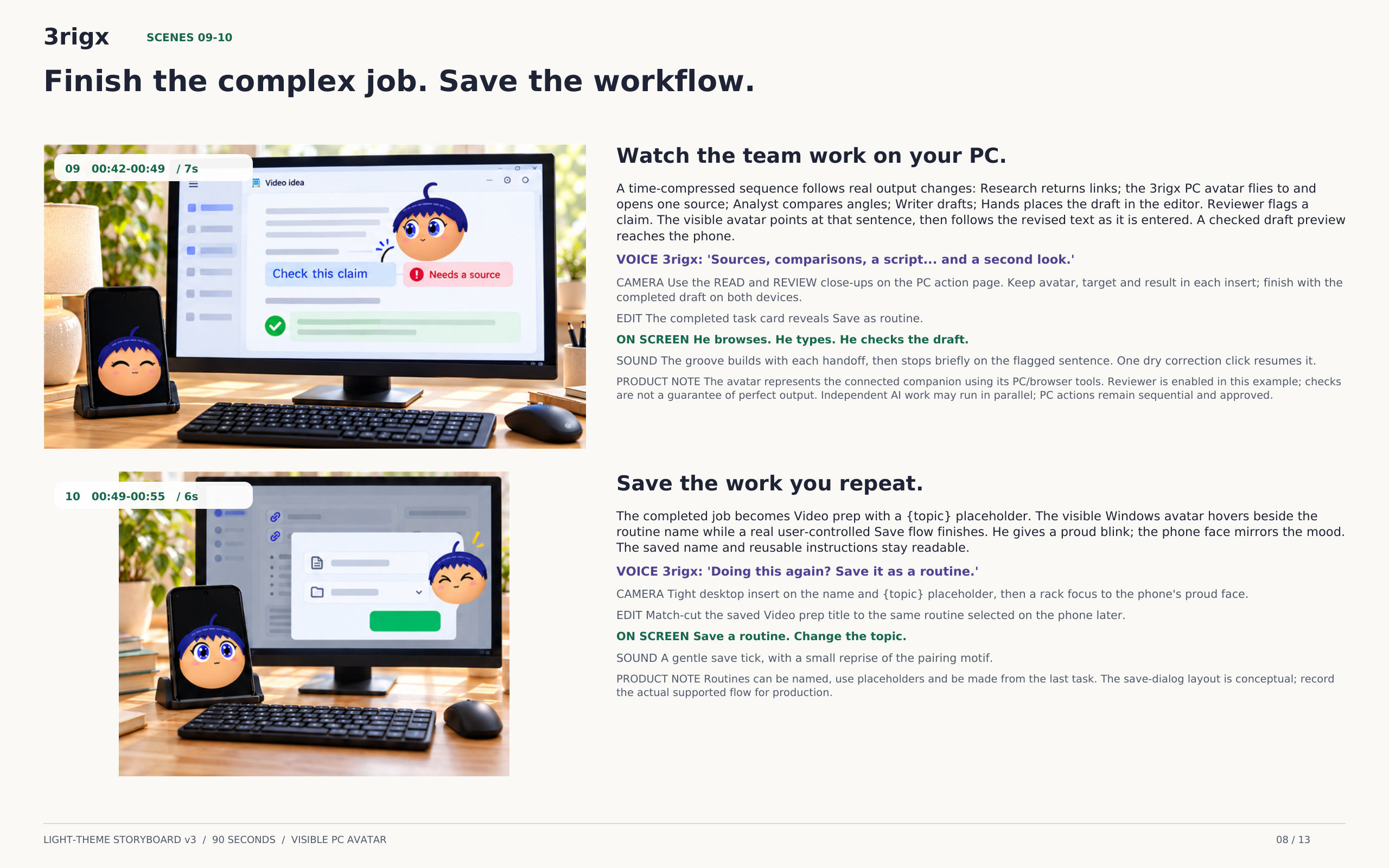
Illustration of a saved routine dialog on the PC, with 3rigx smiling beside it and the connected phone on the desk.
Save the work you repeat. Illustration

Make him yours. His cursor on your PC changes to match.

Set it on the phone; the PC follows. Seven expressions, from sparkle-eyed listening to dozing with z's.

Hair
Eyes
Skin
Glow
Extras

Try the cat ears. I won't tell anyone.

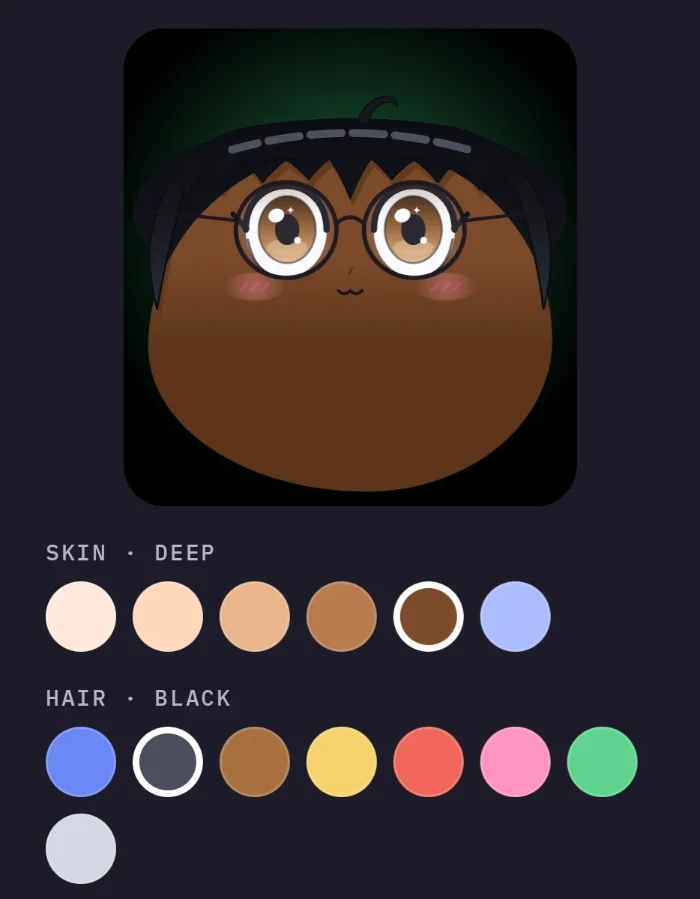
The look settings in the 3rigx Android app: a preview of his face with brown skin, black hair and round glasses, above rows of skin and hair colours.
The real app The same choices in the Android app's settings, with a live preview of him.
3rigx with indigo hair and indigo eyes

His cursor on your PC

Illustrated appearance ideas for the same 3rigx companion: indigo hair, black hair with glasses, green hair, and lavender hair with cat ears and headphones, together above a phone.
The same companion, with a look you choose. Illustrated appearance ideas

Free while we launch, on your PC and your phone.

I'm free. Your AI provider bills you for what I use, and Gemini has a free tier.

Free while we launch

Everything below, on Windows and the Android app paired with it. No account, no card, nothing to cancel.

  • Voice, hold to ask and silent typing
  • His cursor, with Computer control under your Explain, Draft and Act rules
  • The task team, with backups and a daily spending cap
  • Memory, profiles and routines
  • The Android app, Mini avatar and sharing from your phone

Your AI provider bills you, not us

3rigx runs on your own API keys, so the AI provider you choose (OpenAI, Google, Anthropic and so on) bills you directly for what he uses. That depends on how much you ask of him.

A free Google Gemini key is enough to start, within Google's free limits. For a hard limit on spending, set one in your provider's billing settings.

Will it stay free?

It's free while 3rigx launches. Paid plans may come later; if they do, we'll announce them here first, and nothing is ever charged unless you choose it.

Running in three steps.

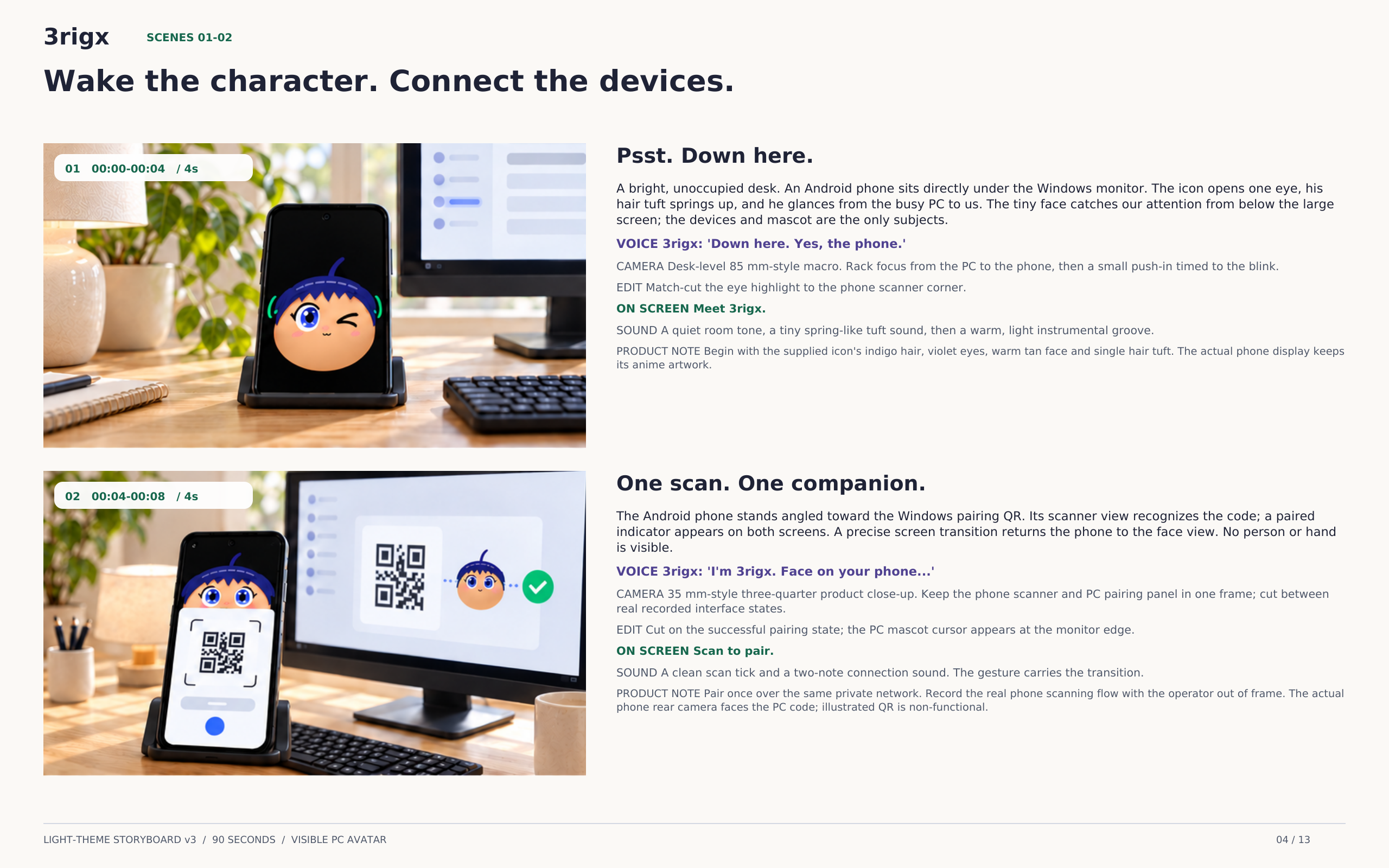
Illustration of a phone scanning the pairing QR code on a Windows monitor, with 3rigx visible on both devices.
Pair your phone with your PC. Illustration · example QR code
  1. 1

    Install 3rigx on your PC.

    Get it from Microsoft Store

    Free · Windows 10 and 11

    Prefer the installer? Download it from 3rigx.com (version 1.0.2). Allow it through Windows Firewall on private networks when asked, and if Windows says it “protected your PC”, choose More info, then Run anyway.

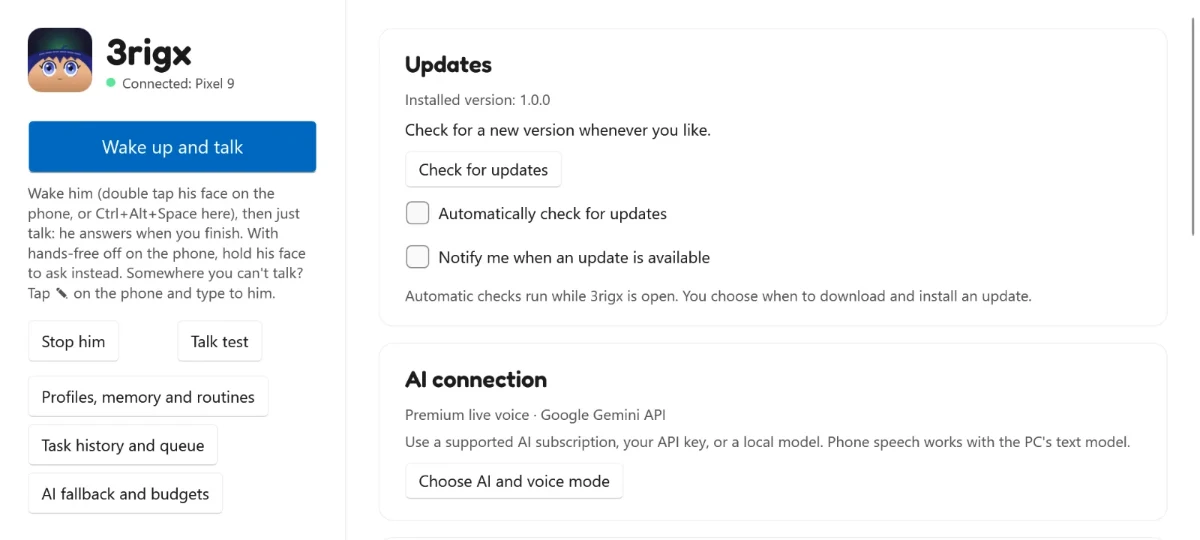
    The 3rigx dashboard on Windows: his icon, Connected: Pixel 9, the Wake up and talk button, Updates and the AI connection.
  2. 2

    Install the app on your Android phone.

    Coming soon to Google Play

    Android 8 or newer

    It's in testing on Google Play now. Want in early? Email support@3rigx.com with the Google account on your phone.

  3. Scan me once and we stay paired.

    3

    Scan the QR code on your PC with the phone.

    Open 3rigx on the PC and its dashboard shows a QR code (or click its tray icon). On the phone, tap Scan to pair and point the camera at it; the normal camera app works too.

    They pair over your own Wi-Fi on an encrypted link. The code works once and expires after five minutes, and if your PC's address changes, the phone finds it again.

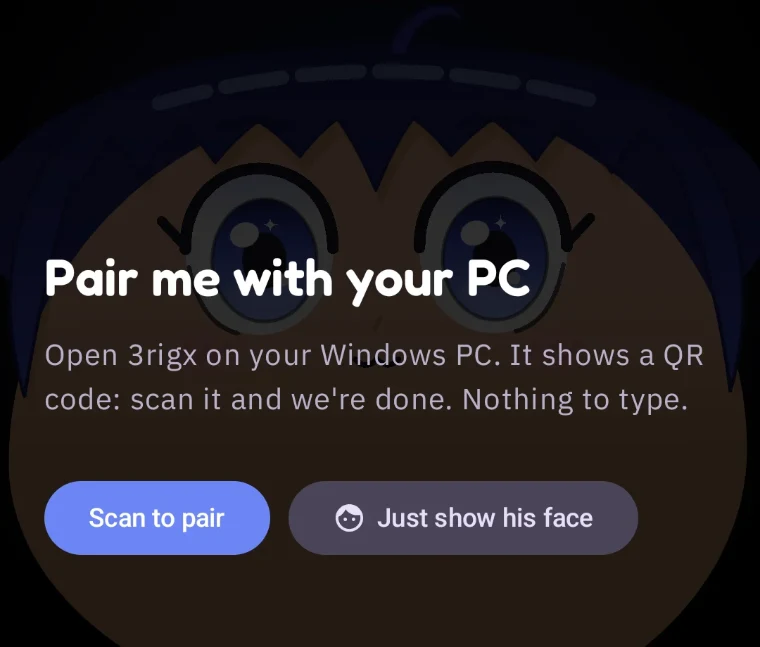
    The phone app's first screen over his face: Pair me with your PC, with Scan to pair and Just show his face buttons.

What you need

A PC
Windows 10 (version 2004 or newer) or Windows 11.
A phone
Android 8 or newer, with a microphone. The camera is only used to scan the pairing code.
Wi-Fi
The PC and the phone on the same network, set as private in Windows, plus an internet connection for the AI.
An AI key
A free Google Gemini key from Google AI Studio is enough to start; OpenAI (with credit on the account), Claude and the others are optional. Keys stay encrypted on your PC, and the phone only ever gets short-lived session keys.

Questions, answered.

Not here? Write to support@3rigx.com.

Which AI providers does 3rigx work with?

For talking to him: OpenAI or Google Gemini. For the task team: OpenAI, Google Gemini, Anthropic Claude, Groq, OpenRouter, Mistral, Cerebras, or a model running on your own PC with Ollama. Each role on the team can use a different one, with a backup if it fails.

What's an API key, and why do I need my own?

An API key is a code from your account with an AI provider that lets 3rigx use its models for you. Because the key is yours, you choose the provider, and what you send stays between you and them. To start, create a free key at Google AI Studio, paste it into the 3rigx dashboard on your PC, and press Test my keys.

Does AI usage cost extra?

3rigx itself is free, but your AI provider bills you at its own prices for what he uses. Gemini's free tier is enough to start; OpenAI needs credit on your account.

3rigx can hold the task team to an estimated daily cap and shows how close each free tier is to its limit. Live voice and web research aren't in that estimate, so for a hard limit, set one in your provider's billing settings.

Where are my API keys kept?

Encrypted on your PC. The phone only ever gets short-lived session keys, and your keys never pass through 3rigx's servers.

Does it need the internet?

Yes. Talking and tasks go to your AI provider over the internet. The phone and the PC talk to each other over your own Wi-Fi.

Does the Android app cost extra?

No. 3rigx is free on your PC and on the Android app paired with it.

Will 3rigx always be free?

It's free while it launches. Paid plans may come later. If they do, we'll announce them on this site before anything changes, and nothing is charged unless you choose a paid plan yourself.

What does he hear and see?

He hears you through the phone's microphone while he's awake, and looks at your PC screen only when he needs to answer or act. Both go to your AI provider with your key. The privacy page explains what's sent, what's stored and where.

Does it work on a Mac or an iPhone?

No. 3rigx is for Windows PCs and Android phones.